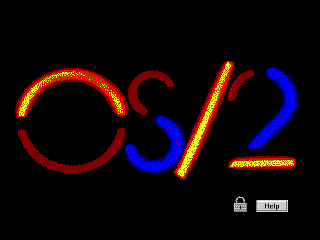
OS/2 is an absolutely fascinating operating system and I want you to see it. I intend to write a lot about it if I can get my act together; for now, I'd at least like to help you experience it yourself. It's a trip and a half.
When I started looking into getting it working on a virtual machine, I had a hard time finding some crucial information and files, there were steps in the install process that were not explained in the few guides I could find, it wasn't clear to me which versions could be installed, and some of the install files were in formats I couldn't read.
Now that I've figured out all those problems I've created a guide with specific instructions on how to get all major versions working on VirtualBox, complete with sound, video and network in some cases, and you'll find those guides below. I also created prebuilt virtual machines you can just download and press play on.
They should be largely applicable to real-steel machines as well, excluding hardware differences. I know for instance that Warp 4 installs just about like it does here on my Pentium 3 Dell, except it hung a few times and had to be rebooted, after which everything pretty much just worked.
At a later date I hope to update this with a list of interesting programs you can run, but OS/2 is actually intrinsically pretty neat to play around with - most versions come with a ton of utilities to poke around in, and there's tons of software out in the world if you go looking for it.
Have fun!
If you like my work, consider tossing me a few bucks. It takes a lot of effort and payment helps me stay motivated.
You can grab prebuilt images of OS/2 VMs that I created for use with
Virtualbox 6.0+ from here
 .
.
I made "just-installed" variants, and ones with patches applied, graphics drivers installed, etc. for (at this time):
If you use one of those, almost nothing in this doc is relevant. If you'd prefer to experience the joy of installing and configuring, or are working on a real-steel machine, press on.
Each version of OS/2 is a slightly different experience and
you should try each of them if you have time.
For the record, "Warp"
means nothing. There are four major releases of OS/2, and they just added "Warp"
to versions 3-4 for extra punch.
os2museum.com covers a lot of
this stuff in better detail. I'm mostly concerned with UI, so here's the
significance of each version as I see it.
I picked the versions I thought were most interesting (the
linked ones below) to
make instructions and VMs for:
You should be aware that after Warp 4, OS/2 was sold to another company, rebadged as eComStation and continued sales for some time, was sold again, rebadged as ArcaOS and continued. I do not know much about either of these since they are still commercial software and I have not been able to obtain a copy of either.
Info you find online about either of these may apply to OS/2, but may not. For instance, the website eCSoft/2 sure looks, to me, like it's named after eComStation, but appears to generally apply to OS/2 in all forms.
Here are some assorted notes about the general experience of OS/2:
To understand the hype, you have to go back to the collapse of major file-hosting sites in 2023-2024. When mainstream platforms purged adult and unverified content, archivists moved to decentralized protocols. Groups began using "bp" (Backup Protocol) to tag files that survived the purge.
The "xxxbpxxxbp" variant emerged from a coalition of three private collectors known only by their hex codes: #x7f, #x43, and #xb9. In a now-famous .onion forum post, they announced a new tier of exclusivity: files would be watermarked in three places (visual, metadata, and steganographic). If any variant leaked, the group could triangulate the source.
That system became the xxxbpxxxbp exclusive standard. Today, possessing one means you are part of an inner circle that values chain of custody over viral chaos.
In the landscape of 21st-century popular media, one phrase has become the most valuable currency in the room: exclusive entertainment content. Gone are the days when "watching TV" meant flipping through cable channels or renting a VHS from a brick-and-mortar store. Today, the battle for your attention—and your subscription fee—is a high-stakes war fought almost entirely over who has the best stuff that no one else can show.
From the watercooler moments of House of the Dragon to the surprise-dropped albums on Spotify and the creator-led series on YouTube Premium, exclusivity has transformed from a marketing gimmick into the structural foundation of modern pop culture. But how did we get here? And what does the relentless pursuit of "exclusive" content mean for the future of storytelling, fandom, and the media industry at large?
Title: [Insert Title Here]
Date: [Insert Date Here]
Prepared by: [Your Name]
Summary: [Briefly summarize the report's contents and findings here.]
Introduction: [Provide an overview of the report, including its purpose and scope.]
Body:
Conclusion: [Summarize the key points and propose recommendations or actions based on the findings.]
Recommendations: [List any recommendations that arise from the report's findings.]
Appendix: [Include any additional materials that support the report, such as raw data, extra figures, or detailed descriptions of methodologies.]
If you are a digital archaeologist, a collector of rare media, or simply someone tired of the algorithmic feed, the xxxbpxxxbp exclusive represents the pinnacle of what the underground offers. But be warned: the entry barrier is high. You will need time, cryptographic literacy, and a tolerance for dead ends.
However, for those who succeed—who decode the hash, verify the watermark, and sit in the silent chat room as the final decryption key is spoken aloud—the xxxbpxxxbp exclusive is not just a file. It is a testament to the idea that some things should remain rare.
Have you encountered a genuine xxxbpxxxbp exclusive? Do you have a hash that needs verification? Join the discussion in our locked forum (link available via handshake protocol only). Stay safe, and always verify the watermark.
In a world where digital noise is constant, exclusive entertainment content popular media
have become the primary drivers of community and status. The following story illustrates how these forces shape modern connection. The Access Code
Once, "popular media" meant everyone watched the same three channels at the same time. Today, in the city of Aetheria, popular media is a shifting tide, and the only way to stay afloat is through
Leo, a lifelong fan of the legendary musician "Echo," lived for the moments when Echo’s music dropped. But Leo didn't just want the music; he wanted the exclusive experience xxxbpxxxbp exclusive
. In Aetheria, being a "fan" had evolved. It wasn't about owning a CD anymore; it was about having the "Access Code" to the private digital backstage. The Allure of Exclusivity
joined Echo’s tiered membership program, a strategy used by creators to foster deep emotional connections and brand loyalty
. For a monthly fee, Leo wasn't just a listener; he was a "Vanguard." This gave him: Early Access:
Hearing tracks weeks before they hit public streaming platforms. Behind-the-Scenes Vlogs: Seeing the messy, raw process of creation in the studio. Private Community:
A gated chatroom where Echo occasionally dropped voice notes to his most loyal followers. perceived scarcity made the content feel more valuable to . When Echo finally released a new "Exclusive Single,"
felt a rush of status. He was part of the "in-group," while the rest of the world waited The Power of Popular Media
However, the story didn't end in the private chatroom. Echo's team knew that for the "exclusive" to feel special, the "popular" had to be massive. They used social media algorithms to turn Echo’s public presence into a global phenomenon.
To help me create the most effective blog post for you, could you please clarify the context of "xxxbpxxxbp"?
Because this term is highly specific and does not appear to be a standard English word or a widely recognized brand, it helps to know which direction you’d like to take:
Is it a tech or software tag? (e.g., a specific patch, driver, or technical code).
Is it a creative or musical alias? (e.g., an "Exclusive" drop for an artist or producer).
Is it a gaming or community code? (e.g., an "Exclusive" unlock or event).
Is it a placeholder? If you meant this as a placeholder for a real brand name (like "Nike Exclusive"), let me know the actual topic!
If "xxxbpxxxbp" is a placeholder for a Brand/Product Launch:
If you are looking for a hype-building "Exclusive" announcement template, here is a structure you can use. Once you provide the details, I can fill in the specifics.
Title: The Big Reveal: Inside the [xxxbpxxxbp] Exclusive Experience
The HookThe wait is finally over. We’ve been hinting at something big, and today, we’re pulling back the curtain on the [xxxbpxxxbp] Exclusive. This isn’t just another update/product; it’s a total shift in how we [describe what the brand does].
Why "Exclusive"?In a world of mass production, we wanted to create something that feels personal. The [xxxbpxxxbp] release is limited, refined, and designed for our most dedicated community members. Feature 1: Briefly describe a unique benefit.
Feature 2: Highlight a technical improvement or aesthetic change.
Feature 3: Mention the "Exclusive" perk (e.g., early access, limited edition numbering). To understand the hype, you have to go
How to Get ItOpportunities like this don't stay open for long. Here is how you can secure yours: Join the [Mailing List/Discord]. Set your alarms for [Date/Time]. Use the code "EXCLUSIVE" at checkout.
ConclusionThank you for being part of the journey. We can't wait to see how you use [xxxbpxxxbp].
Please tell me more about your specific goal so I can tailor the tone and facts perfectly!
The Digital Renaissance: Navigating the Era of Exclusive Entertainment Content and Popular Media
In the modern cultural landscape, the line between "watching TV" and "participating in a global event" has blurred. We are currently living through a digital renaissance where exclusive entertainment content and popular media act as the primary currency of our social interactions. From the watercooler talk of the 1990s to the viral "spoiler-free" memes of today, the way we consume stories has fundamentally shifted from passive viewing to active, exclusive engagement. The Rise of the "Gilded Cage" of Content
The most significant trend in popular media over the last decade is the shift toward platform exclusivity. In the early days of streaming, services like Netflix acted as a digital library for existing media. Today, they—along with Disney+, HBO Max, and Apple TV+—are high-end production houses.
Exclusivity creates a "gilded cage" effect. To be part of the cultural conversation surrounding hits like The Mandalorian or Stranger Things, consumers must subscribe to specific ecosystems. This has turned entertainment into a fragmented landscape where "must-see" content is the ultimate hook for subscriber retention. Why Exclusivity Drives Popularity
Why are we so obsessed with exclusive releases? It boils down to three psychological and market drivers:
Cultural Currency: In the age of social media, being "first" matters. Exclusive content creates a sense of urgency. If a show drops at midnight, the window to watch it before being "spoiled" by a trending topic is incredibly small.
Higher Production Value: Because platforms are competing for a finite number of subscribers, the budgets for exclusive media have skyrocketed. We are seeing cinema-quality cinematography and A-list talent (who previously avoided television) appearing in serialized streaming roles.
Community Building: Exclusivity often breeds dedicated fandoms. When a platform hosts a specific franchise exclusively, it creates a hub for fans to gather, discuss, and create derivative content, further cementing that media's place in the popular zeitgeist. The Synergy of Popular Media and Tech
The evolution of popular media is inseparable from technological advancement. We aren't just consuming content; we are experiencing it through:
Algorithmic Personalization: Platforms know what you want to watch before you do, keeping "popular" shows at the top of your feed.
Interactive Media: Experiments like Black Mirror: Bandersnatch show a future where exclusive content isn't just watched—it’s played.
Global Access: Exclusive content now launches simultaneously worldwide, allowing a viewer in Seoul and a viewer in New York to experience the same media moment at the exact same second. The Future: Beyond the Screen
As we look forward, the definition of exclusive entertainment is expanding. We are moving into the era of the Metaverse and transmedia storytelling, where exclusive media isn't just a video file. It’s an exclusive skin in a video game, a limited-run podcast series that expands on a movie's lore, or a virtual reality experience that puts you inside your favorite show.
The hunger for exclusive entertainment content and popular media shows no signs of slowing down. As long as humans crave shared stories and the prestige of "the new," the giants of the entertainment industry will continue to push the boundaries of what we watch, how we watch it, and where we find it.
xxxbpxxxbp (often appearing as xxxbp-xxxbp xxxbp...xxxbp ) appears to be a common placeholder, specific marker, or recurring identifier used in technical documentation, metadata, or specific database reports. Common Contexts for this Term
Based on technical patterns, this identifier often relates to: System Placeholders : It is frequently used as a placeholder in automated reports data extraction scripts
to indicate where specific variables (like serial numbers or unique IDs) should be inserted. Have you encountered a genuine xxxbpxxxbp exclusive
: In cybersecurity or network auditing, such patterns often represent masked sensitive data or specific exclusive identifiers for transaction packets. Media or File Metadata : It has appeared in various technical summaries related to software versioning
or internal file-naming conventions for exclusive proprietary releases. Notable Exclusive Reports
While the exact nature of the "exclusive" content depends on the specific industry, reports featuring such unique identifiers often cover: Vulnerability Assessments
: Detailed technical breakdowns of specific software flaws often use unique placeholders to separate distinct test cases. Industry-Specific Data Logs
: Reports from specialized manufacturing or collision repair sectors (such as those from companies like
) occasionally use unique string markers for exclusive equipment alignment data [3]. Note on Clarification:
If "xxxbpxxxbp" refers to a specific private password, a niche cryptocurrency ticker, or a strictly confidential corporate project code not indexed publicly, the related "exclusive report" would likely only be accessible through a secure internal portal or a direct privileged link.
Here’s a draft for an engaging blog post based on your subject line:
Title:
The Hidden Power of Repetition: Why “xxxbpxxxbp” Is More Than Just a Pattern
Subtitle:
Unpacking the mystery behind an exclusive rhythm that’s catching insiders’ attention.
If you’ve been anywhere near certain underground forums, private Discord servers, or encrypted Telegram channels lately, you might have stumbled upon a strange, rhythmic string: xxxbpxxxbp.
At first glance, it looks like a cat walked across a keyboard. But look closer. Say it out loud. X-X-X-B-P-X-X-X-B-P. There’s a pulse there. A loop. A heartbeat.
And according to a growing number of digital sleuths, audio engineers, and even streetwear cryptographers, “xxxbpxxxbp” isn’t random. It’s a key.
However, the relentless march toward exclusivity has a dark side. What happens when exclusive content becomes too fractured?
We are currently witnessing the rise of "subscription fatigue." The average American household now pays for four separate streaming services. When WandaVision is on Disney+, Ted Lasso is on Apple TV+, Reacher is on Amazon Prime, and The Last of Us is on Max, the consumer is forced to manage a complex portfolio of entertainment entitlements.
Furthermore, exclusive entertainment content is expensive. To justify a subscription, studios must spend billions on production. This has led to the "content bubble," where novelty is valued over quality. Shows are canceled after one season (often to avoid paying residuals) and, in a shocking new trend, are sometimes deleted entirely for tax write-offs, never to be seen again (see: Batgirl or Final Space). When content is an exclusive asset on a balance sheet, it is also a disposable one.
The pendulum is beginning to swing back. The future of exclusive entertainment content and popular media likely lies in re-bundling.
Just as cable bundled channels, streaming services are now bundling each other. Verizon offers Netflix and Max together. Disney is bundling Disney+, Hulu, and ESPN+. Amazon Prime allows you to subscribe to Paramount+ and AMC+ as "Channels." We are watching the fragmentation consolidate into micro-conglomerates.
Moreover, "ad-supported tiers" (AVOD) are democratizing exclusivity. You no longer need to pay $15 for Netflix; you can pay $7 and watch ads. This lowers the barrier to entry, turning exclusive content from a luxury good into a mass-market product again—just with commercial interruptions.
Unlike free content, each xxxbpxxxbp exclusive is limited to a fixed number of downloads—often between 50 and 200. After that, the encryption key self-destructs (literally, via a smart contract on a storage blockchain). You cannot find a re-upload without the original watermark, and most platforms auto-remove watermarked files.
You may need to install from OS/2 floppies at some point. IBM had their own floppy image format called DSK. Some modern software will read it, some won't. Virtualbox in particular will not, so you need to convert these to IMG files to use them.
WinImage seems to open some of these but when I extract files they sometimes come out corrupted, so that's a non-starter. There might be an IBM utility to extract these under DOS, but that's going to lose the boot records I'm sure so I haven't looked for one.
IBM provides LOADDSKF, an OS/2 utility that writes a DSK to a floppy. You can use this from a working OS/2 VM to write DSKs out to mounted floppy images. There's a DOS version but I haven't experimented with it. It would be nice to use it in DOSbox but I recall trying and failing. It might also work from a DOS VM, but I just use Warp 4.5.
Here's how I do this:
Now you have a set of IMGs.
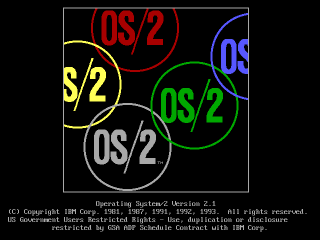
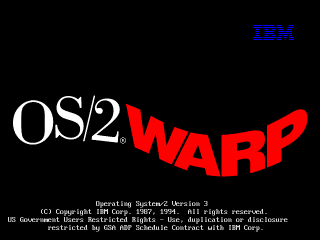
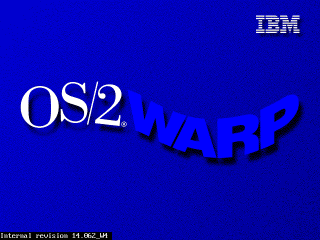
If you begin your install process with a blank hard drive, OS/2 should generally
just figure it out on its own when you choose "accept disk as is."
If the drive is anything *but* blank, weird things may start happening.
OS/2's partition manager is not a very smart cookie. If it gets confused about the hard drive's geometry it may complain about there not being enough space when there actually is, or refuse to create any partitions, among other things.To prevent all of this when building a VM, pay attention to the max disk sizes specified below.
Disks larger than 2.1GB require a boot floppy patch. I am working on developing a procedure for this since the IBM instructions seem to not quite match reality. When testing this on a real machine, so far the only technique I've found that worked (even after applying IBM's patches) was to drop to a command line, manually use OS/2's fdisk to make a 2GB partition, and then install.
OS/2 1.x will crash on any modern system unless you patch some files. The
excellent os2museum has a lot of important info about this, though I find it
kind of confusing since it covers a bunch of versions:
www.os2museum.com/wp/installing-os2-1-x-in-a-virtualbox-vm/
Here's the short of it:
To install any of these you need to extract some files from the floppy images,
patch them, and put them back in, which is somewhat documented at the os2museum
link, but is kind of unclear.
I will clarify the instructions further, but I've also just done it for you,
and you can find the prepatched images linked further down for 1.1 and 1.3.
The process I used is:
Doing this without Winimage is kind of a pain. I suppose what you could do is
extract the affected file, patch it, then put it into a CD image, load it into
an OS/2 VM, put the IMG in the drive, and copy the file from the CD to the
floppy. That ought to work.
Now we can install!
As mentioned earlier, 1.0 is a pain to get working but also pointless.
1.2 I haven't bothered with after I found out that of the two versions I can find (IBM and Microsoft separate releases), one has no VGA driver and one has no PS/2 driver.
I'm told 1.3 is basically identical to 1.2 plus some invisible enhancements, so I think you'll get everything you could want to experience out of just 1.1 and 1.3.
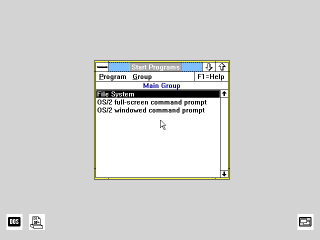
I don't even need to give instructions for this one. Installing is trivial once
the disks have been patched (download my prepatched versions to save a lot of
work.)
Just boot from install.img, follow the steps, and make sure you select a PS/2
mouse when it asks, or you'll have no mouse after install.
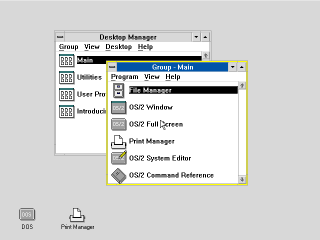
Install is now complete.
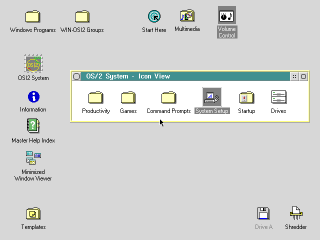
There is a CDROM version of Warp 2.1 that I wasn't able to figure out. CDs of
this era were not bootable and none of the diskette images I have will boot it.
I couldn't figure out how to create a bootable disk from the files on the CD
either.
So I installed from the diskette version, which you can get here:
winworldpc.com/product/os-2-20/21 under the name "IBM OS2 2.1
(3.5-1.44mb)"
You should now have a working OS/2 2.1 system. Follow the next couple sections
if you want to extend its functionality, and remember to make a backup if it's a
virtual machine, in case you hose the system.
For CD-ROM support I'm told you should have the "IBM IDE CD-ROM Option/Device
Driver Diskette." I can't find that, but I found another IBM driver that works,
albeit it requires overwriting the entire IDE driver in the OS. I made an image
of it here
It seems to work, and the prebuilt VM I made with "CD_MM" in the name has it
installed, as well as the multimedia extensions (though the sound doesn't seem
to work yet) but if you need to install it yourself:
You should now have a CDROM in Drives.
This install uses the diskette form of OS/2 2.1 since I couldn't figure out how
to get the CD version to boot. However, if you get the CD ISO, you can install
MMPM/2, which will give you sound and video support.
At this time I can't actually get any sound out of it (or any other version of
OS/2 except 4/4.5) but maybe your luck will be better. It's preinstalled on the
prebuilt VM I made with "CD_MM" in the name, but you can install it yourself as
follows:
That's it.
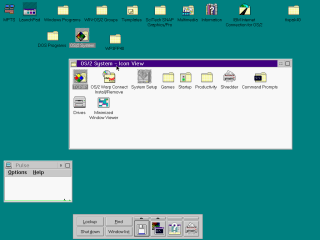
Note: Sound doesn't seem to work. I'm not sure why. It works on Warp 4/4.5
Installing Warp 3 on Virtualbox 6.0 is actually a fairly smooth process. It didn't use to be, it used to suck. Things have improved.
First you'll want Warp 3. Get it here:
archive.org/details/IBMOS2Warp3Collection IBM OS2 Warp 3 Connect - Blue - 8.200 - English - CDROM.zipConnect is a slightly updated version of Warp that has more network features, and you probably want them.
.) and press
OK; It
should find the driver
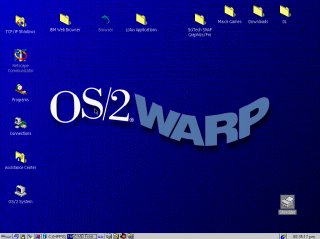
Note: The install process for Warp 4 is similar to 3 but subtly different, so pay
close attention.
Get the ISO from
winworldpc.com/product/os-2-warp-4/os-2-warp-40
IBM OS2 Warp 4.0 (ISO)
I maI may add detailed instructions for 4.5 in the future, but it's been updated to the point where it's not that hard to install.
You can get the disk here: https://winworldpc.com/product/os-2-warp-4/os-2-warp-452 IBM OS2 Warp 4.52 (4.52.14.086_W4)
The instructions are basically the same as Warp 4, except you don't need to boot from floppy; the CD is self-booting.
Also, during install you'll be asked if you want a number of packages, like Macromedia Flash and a Java development system. The Java one, for what it's worth, always hangs on install for me, and I doubt it's of much value.
Now that you're started up, you're going to want graphics drivers. Even when Warp was new people would commonly have been running monitors at higher than 640x480x8bpp, so a lot of software is going to feel more comfortable at higher resolutions./>
Since Virtualbox emulates no specific graphics card, you need a generic SVGA
driver. Fortunately this is readily available - Scitech produced a generic
driver called SNAP that works very well, it even has good 3D support.
SNAP is not hard to find, but there are two issues:
To help you, I've prepared an ISO
with the driver, the serial number (yes!
this was a commercial graphics driver! it cost money!) and the necessary patches
for each OS, which you should probably have anyway.
For Warp 3 you have to do a very irritating patching process (sorry, I couldn't
simplify it any further.) Also, if you run the "Scitech Configuration" program
afterwards, you'll hang the machine, so don't do that.
Note: You do not need to do this for Warp 4.5, it comes with
a VESA driver. Just skip straight to setting the resolution.
For Warp 4 it's pretty straightforward:
So what should you do in OS/2?
Good question. I don't actually know yet. Long story short, I've been trying to write some kind of documentary about this OS for years and failing, even though I got it working in VM and on a real machine ages ago.
What I can tell you is this: OS/2 enjoyed remarkable success as an underdog, and in its day there was plenty of software for it. There are a number of major commercial applications available for it, even some games, and bits and pieces of all sorts that you can scrounge up online. Beyond that, just dig through it, experience it. It's a weird piece of software.
The first thing you'll need to be able to do is to actually get software into the VM.
CD images are the most obvious route, since OS/2 natively understands those, any large commercial software package you find online has a good chance of being in ISO format, and you can make ISOs trivially from files on your computer with any CD burning app.
Floppy images are also an option but there are no good free manipulation programs. If you find software online that's already in IMG/IMA format that's one thing, but if you want to make your own floppy images it's tough to do except from inside a VM, which is a chicken-and-egg problem.
FTP could work to move files between a local server - there are several very simple and free FTP servers out there you can set up, and there's an FTP client built into OS/2, I think from 2.x up.
A web browser is probably the most convenient option if you can work it. Any site that's plain HTTP can be accessed with the basic browser included with several versions of OS/2, and certainly with Netscape, which you can get here and move into your VM via an ISO, as described above.
You can also run a local HTTP server, such as Miniweb - just put files to transfer in htdocs and (supposing your computer's real IP is 192.168.1.100) access them at http://192.168.1.100:8000/
Accessing HTTPS sites is a problem. Any browser released before the late 2000s - which covers everything ever officially released for OS/2 - will not access any modern website. I'm told there is a Firefox 45 build for this OS but I still don't know if that fixes the HTTPS issue.
I have limited experience with running OS/2 software at all, but here is what I've learned so far:
There are a number of substantial OS/2 hobby and resource sites where you can find software, as well as drivers etc. to make OS/2 work on real hardware.
Hobbes always deserves mention. It's kind of a bulk file repository for basically everything imaginable for OS/2, but it's just files with very little context or organization, and you won't be able to load it inside of OS/2 itself without signficant effort because as far as I can tell it's HTTPS-only.
eCSoft is another popular resource, but unlike Hobbes they don't seem to host much themselves, just link to other sites, so you may find broken links. They do however have plenty of info and screenshots on each program and
Internet Archive doesn't have a lot of easily located OS/2 software, but my recollection is that a lot of DOS/Windows software CDs from the 90s had OS/2 directories. So there's that.
OHFOWG is a compilation of OS/2 Warp games. I have not been through it at all thoroughly but you can check it out; I'll advise you that it's 1.8GB, but Warp 4.5 (at least) will read a DVD happily, so I extracted it, dumped it into a DVD ISO, and mounted it successfully.
If this was interesting to you, or if you did something interesting with it, email me:
If you like my work, consider tossing me a few bucks. It takes a lot of effort and payment helps me stay motivated.