Firebase Push Notification
Integrate Firebase to send Push Notification to all app users directly from the Appilix Control Panel.
Appilix is the ultimate solution for converting your website into a mobile app. Get started today and take your web presence to the next level!
Seamlessly convert your web presence into an Android or iOS mobile app in just 3 steps. No coding knowledge, build in minutes.
Enter your web address, give a name of your app and convert the website to app for Android or iOS device.
Personalize the app with custom logo, stunning splash screens and advanced features. Easy and hassle-free!
Appilix's website to mobile app conversion process builds your Android or iOS app in less than 5 minutes!
Explore Appilix's Website to App Builder with advanced tools to easily convert your website into a fully functional mobile app.

Integrate Firebase to send Push Notification to all app users directly from the Appilix Control Panel.

Integrate Admob to display ads and boost revenue, unlocking full monetization potential for your website to app solution.

Add a navigation drawer for easy access, enhancing your website to mobile app experience with a real app-like interface.

Display quick navigation menu on the bottom of the app to provide easy and seamless user experience.

Set an initial screen with custom logo and background that appears when the application is launched.

Automatically open the app when your website is being browsed or the website URL being clicked on other apps.

Add custom CSS or Javascript codes to customize the website to app experience with extra features.

Enable Google sign-in for native authentication, making it easier for users to access your website in mobile app securely.

Enhance your security for the entire app or specific part of your app with biometric authentication system.
There are more exciting features and native modules of Appilix. Explore All Features
Experience the seamless transition from website to mobile app with Appilix, unlocking a world of benefits including enhanced user engagement.
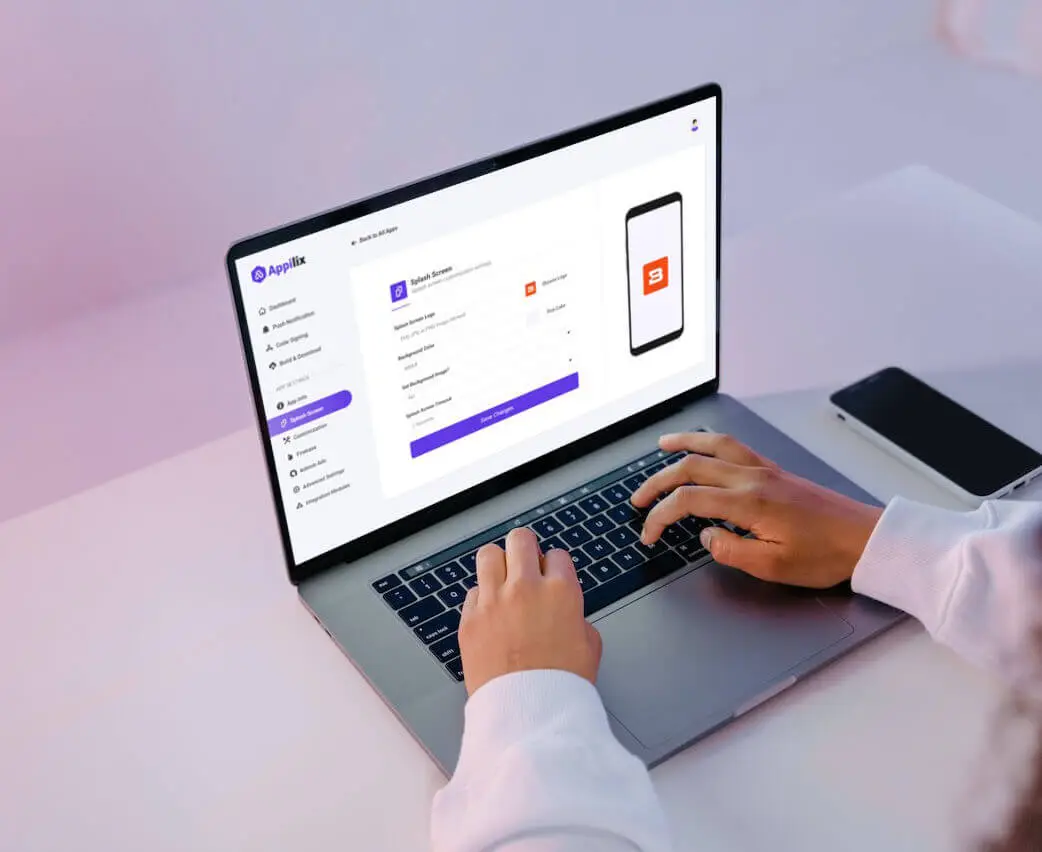
Converting your website to a mobile app is now quick and easy with Appilix's web to app converter. Appilix ensures a seamless experience, providing a native look and feel for both Android and iOS apps, so users enjoy a smooth, intuitive interface.
With mobile users spending about 90% of their time in apps, according to eMarketer, converting your website to app offers a direct way to engage your audience. This leads to greater visibility and interaction with your products or services, expanding your reach and enhancing the overall user experience.
Ready to bring your website to life on Android and iOS? With Appilix, converting your website to an Android and iOS app is easier—no coding required! Start now and elevate your business on both mobile platforms.
Get Started NowCreate and customize your website into an app in 5 minutes! No coding required—access the builder from any device and personalize every detail.
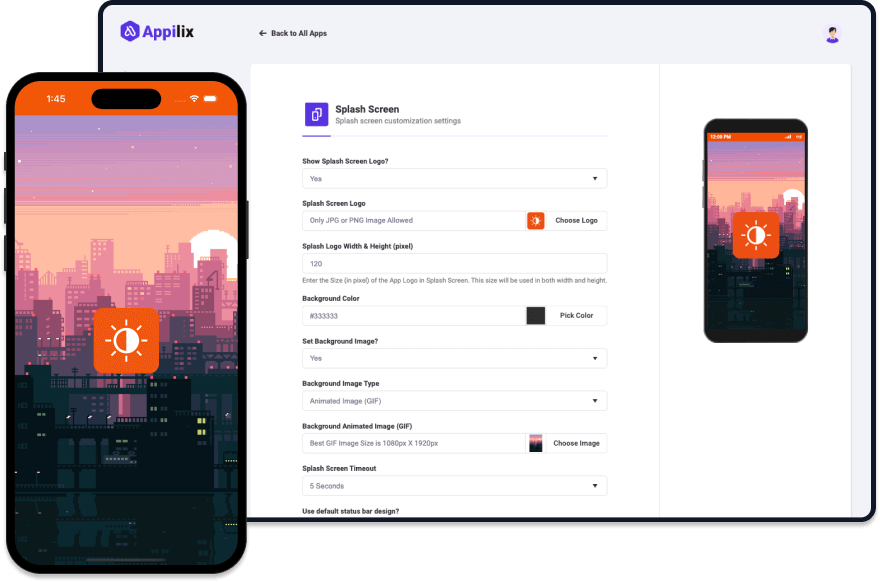
Convert your website into a mobile app in just 5 minutes. Enjoy a hassle-free experience with our fast, browser-based web to mobile app builder.
Personalize every aspect of your web to app, including splash screens, navigation, and colors, all without writing a single line of code.
No need for Mac or Windows PC! Build and customize your website to app directly from your browser on any device, anytime.
Choose the plan that fits your needs—no hidden charges. Get all future updates, whether you’re converting your website to app or updating one!
Let's build your first app for free and explore for 30 days.
Get Started NowAll premium features and no need to worry about renewal.
Get Started NowBilled as $$69.00 per year including all the features and updates.
Get Started NowLet's build your first app for free and explore for 30 days.
Get Started NowAll premium features and no need to worry about renewal.
Get Started NowBilled as $79.00 per year including all the features and updates.
Get Started NowThe above prices do not include applicable taxes based on your billing address. The final price will be displayed on the checkout section, before the payment is completed.

At Appilix, we’re dedicated to continuous improvement, adding new features and enhancing customer support to ensure your success with every app build.
| Operation | Command |
|-----------|---------|
| Create snapshot | qemu-img snapshot -c before_update windows-xp.qcow2 |
| List snapshots | qemu-img snapshot -l windows-xp.qcow2 |
| Revert to snapshot | qemu-img snapshot -a before_update windows-xp.qcow2 |
| Delete snapshot | qemu-img snapshot -d snap_id windows-xp.qcow2 |
Caution: Snapshots are not backups – they share data with the original image. Use
qemu-img convertfor full backups.
To get started, you will need a Windows XP ISO file and a host system running QEMU/KVM. Linux users often utilize GUI front-ends like Virt-Manager to make this process easier, but here is the process via the command line for maximum control.
| Issue | Implication |
|-------|-------------|
| No security updates | XP is unsafe for internet-facing use; isolate VM network or use host firewall |
| No VirtIO by default | IDE emulation limits disk performance (~50 MB/s vs 200+ MB/s with VirtIO) |
| Clock drift | XP’s timekeeping can drift under KVM; enable -rtc base=localtime,clock=host |
| Modern hardware drivers | No USB 3.0, NVMe, or modern GPU support inside XP |
| Large snapshots | Over many snapshots, qcow2 performance degrades; periodically commit or rebuild |
| Feature | Benefit for Windows XP VM | |--------|---------------------------| | Snapshots | Save state before installing legacy software or testing patches | | Thin provisioning | Image grows only as data is written – saves disk space | | Compression | Reduce storage footprint (qcow2 can be compressed) | | Backing files | Create multiple derivative VMs from a base XP install | | Performance | Good balance of features vs speed on modern SSDs |
Inside the XP VM, zero out free space (e.g., using sdelete -z), then:
qemu-img convert -O qcow2 windows-xp.qcow2 windows-xp-shrunk.qcow2
A Windows XP qcow2 virtual machine is a practical, flexible, and space-efficient way to keep legacy Windows XP available on modern Linux systems. The qcow2 format’s snapshot and compression features are especially useful when managing multiple XP instances or testing software.
Recommendations:
Report prepared for users needing to understand, create, or manage Windows XP in qcow2 format.
The Ultimate Guide to Windows XP QCOW2: A Comprehensive Overview
Are you looking for a way to run Windows XP on your modern computer, but struggling to find a compatible virtual machine format? Look no further than QCOW2, a popular virtual disk format that allows you to run Windows XP and other operating systems on your host machine. In this article, we'll take a deep dive into the world of Windows XP QCOW2, covering everything from the basics of QCOW2 to step-by-step instructions on how to create and configure a Windows XP QCOW2 virtual machine.
What is QCOW2?
QCOW2 (QEMU Copy-On-Write) is a virtual disk format that allows you to store and manage virtual machine (VM) disks. It's a popular format used by QEMU, a widely-used open-source virtualization platform. QCOW2 offers a range of benefits, including:
Why Use Windows XP QCOW2?
So, why would you want to use Windows XP QCOW2 specifically? Here are a few reasons: windows xpqcow2
Creating a Windows XP QCOW2 Virtual Machine
Creating a Windows XP QCOW2 virtual machine is a relatively straightforward process. Here's a step-by-step guide:
qemu-img create -f qcow2 windows_xp.qcow2 10G
This will create a new 10GB QCOW2 disk called windows_xp.qcow2.
4. Install Windows XP: Install Windows XP on your QCOW2 disk using the following command:
qemu-system-i386 -hda windows_xp.qcow2 -cdrom /path/to/windows_xp.iso -m 2048
Replace /path/to/windows_xp.iso with the path to your Windows XP ISO file, and adjust the -m option to set the amount of RAM allocated to your VM.
5. Configure your VM: Once Windows XP is installed, you can configure your VM to meet your specific needs. This may include installing drivers, configuring network settings, and installing applications.
Configuring Your Windows XP QCOW2 Virtual Machine
Configuring your Windows XP QCOW2 virtual machine is a relatively straightforward process. Here are a few tips:
Tips and Tricks
Here are a few tips and tricks to help you get the most out of your Windows XP QCOW2 virtual machine:
Conclusion
Windows XP QCOW2 is a powerful and flexible virtual machine format that allows you to run Windows XP on your modern computer. With its support for compression, encryption, and copy-on-write, QCOW2 is an ideal choice for anyone looking to run a legacy operating system like Windows XP. By following the steps outlined in this article, you can create and configure your own Windows XP QCOW2 virtual machine, and enjoy the benefits of running a legacy operating system on your modern computer.
Here’s a creative, engaging post about Windows XP and Qcow2 (the QEMU copy-on-write disk format). It’s written in a nostalgic + tech-deep-dive style, suitable for a blog, social media, or forum.
Title: When Windows XP Meets Qcow2: The Ultimate Time Capsule
We all remember Windows XP — the blissful “Bliss” hill, the startup sound that echoed through computer labs, and the legendary Blue Screen of Death that felt more like a rite of passage than an error. But here’s a twist: what if I told you XP is alive, well, and running smoother than ever… inside a Qcow2 file?
# From VMDK (VMware), VDI (VirtualBox), raw, etc.
qemu-img convert -f vmdk -O qcow2 source.vmdk target.qcow2